
C++ Fast Track for Games Programming Part 14: File I/O
Before we continue with physics and AI, there is one more general technique that every game needs: file I/O. I/O stands for Input/Output: reading data from files, and writing data to files. You have been reading files all along, every time you loaded an image, but the template did the work for you. Games store much more than images: levels, settings, high scores, saved games. In this part, you will write and read your own files.
Remember the tile map of part 11? The map is written in the code, as two arrays of numbers. To change a single tree, you have to change the code and build the game again. A level designer would not be happy with that. In this part, we will move the map to a file, and then build a small editor in the game itself, so that you can change the map with the mouse, and save it.
Getting Started
Section titled “Getting Started”For this tutorial, you will start where part 11 ended: the template with the tile map and the tank. Download it here:
 part-14.zip
Extract the zip file to C:\Projects\C++ Fast Track: it contains a Part 14 folder. Open tmpl8.slnx in the C:\Projects\C++ Fast Track\Part 14 folder. Run it, and you will see the map and the green tank of part 11, which you can drive with the arrow keys (or W, A, S and D). As in part 11, the screen is 768 × 512 pixels: exactly 12 × 8 tiles of 64 × 64 pixels.
Writing a File
Section titled “Writing a File”Let’s start by writing the map to a file. We need a few more headers: <fstream> for files, <format> for std::format, and <string> for std::string. Add the highlighted lines at the top of game.cpp:
#include "game.hpp"
#include <format>#include <fstream>#include <iostream>#include <string>SaveLayer
Section titled “SaveLayer”The map has two layers, and both are saved in the same way. So we start with a function that writes one layer. Add it below TankFits:
// Writes one layer of the map to a file: a line of numbers for every row, separated by commas. void SaveLayer(std::ofstream& file, int layer[MapHeight][MapWidth]) { for (int y = 0; y < MapHeight; y++) for (int x = 0; x < MapWidth; x++) file << std::format("{:3}", layer[y][x]) << (x < MapWidth - 1 ? "," : "\n"); }SaveLayer writes the layer row by row: the numbers of one row on one line, separated by commas.
fileis the file to write to (a file stream, seeSaveMapbelow).file << valuewrites a value to the file, just likestd::cout << valuewould print it in the console.std::format("{:3}", layer[y][x])makes the number at least 3 characters wide (you saw that in part 9). That’s not necessary, but it makes the columns line up, so that the file is easy to read for a human.- After each number, the code writes a comma, except after the last number of a row: then it writes
"\n", the end of a line (a new line). The? :picks one of the two (it’s the conditional operator:condition ? a : bisawhen the condition is true, andbotherwise). - The
&instd::ofstream& filemakes the parameter a reference:SaveLayerdoesn’t get a copy of the file, but the file of the code that called it. A reference is another name for an existing variable. (A file stream can’t even be copied: try it without the&, and Visual Studio will complain.) The layer is an array, and an array parameter is always passed as a pointer to its first element (see part 10), soSaveLayerdoesn’t copy the layer either.
SaveMap
Section titled “SaveMap”Next, the function that saves the whole map. Add it below SaveLayer:
// Saves the map to a text file: the size of the map, and then the two layers. Returns false when that fails. bool SaveMap(const std::string& filename) { std::ofstream file(filename); if (!file) return false; // the file couldn't be created file << MapWidth << " " << MapHeight << "\n\n"; SaveLayer(file, ground); file << "\n"; // an empty line between the layers SaveLayer(file, objects); return static_cast<bool>(file); // false when something went wrong while writing }SaveMap opens the file, writes the size of the map, and then uses SaveLayer twice: once for the ground, and once for the objects, with an empty line in between. It returns true when the map was saved, and false when it wasn’t.
std::ofstream(from<fstream>) is an output file stream: a file that you write to.std::ofstream file(filename);creates a variablefile, and opens the file with that name. If the file already exists, it is replaced; if it doesn’t, it is created.- Opening a file can fail: the folder may not exist, or the file may be read-only, or opened by another program. Then
fileisfalse, so!file(notfile) istrue: that’s whatif (!file)checks. In that case,SaveMapreturnsfalse, so that the code that called it knows that the map was not saved. file << MapWidth << " " << MapHeightwrites the size of the map, with a space in between."\n\n"ends that line, and adds an empty line after it.- At the end,
static_cast<bool>(file)turns the file intotrueif everything went fine, andfalseif anything went wrong while writing (a full disk, for example). - Where is the code that closes the file? There is none.
fileis an object, and when the function ends, the object is destroyed, and it closes the file by itself. (It’s a class, like the classes of part 12: a class can have a destructor, a method that runs automatically when the object is destroyed.)
Saving the Map
Section titled “Saving the Map”Finally, call SaveMap in Init, so that the game saves the map when it starts:
// ----------------------------------------------------------- // Initialize the application // ----------------------------------------------------------- void Game::Init() { SaveMap("assets/map.txt"); }Run the game. It looks exactly the same as before, but it wrote a new file: map.txt, in the assets folder of your project (C:\Projects\C++ Fast Track\Part 14\assets). Open it in Visual Studio (Ctrl+O, or drag it from Windows Explorer into Visual Studio):
12 8
  0,  0, 10,  1,  0,  0, 10,  0,  0,  0, 10,  0  2,  2,  2, 12,  2,  2,  2, 14,  0,  0,  0,  0  0, 10,  0,  1,  0,  0,  0,  1,  0, 10,  0,  0  0,  0,  0,  1,  0, 10,  0,  1,  0,  0,  0, 10 18, 18, 18, 38, 18, 18, 18, 38, 18, 18, 18, 18 20, 30, 20, 21, 20, 20, 20, 21, 20, 30, 20, 20 22, 22, 22, 25, 22, 22, 22, 25, 22, 22, 22, 22 20, 20, 30, 20, 20, 30, 20, 20, 20, 20, 30, 20
 -1,  0, -1, -1, -1,  1, -1, -1,  2, -1,  0, -1 -1, -1, -1, -1, -1, -1, -1, -1, -1,  0, -1,  1  0, -1, 14, -1, -1,  3, -1, -1, -1, -1,  2, -1 -1,  1, -1, -1, -1, -1, -1, -1,  5,  5, -1,  0 -1, -1, -1, -1, -1, -1, -1, -1, -1, -1, -1, -1  7, -1, -1, -1, -1,  4, -1, -1, -1, 11, -1,  3 -1, -1, -1, -1, -1, -1, -1, -1, -1, 12, -1, -1 -1, -1, 10, 10, -1, -1,  8, -1, -1, -1,  7, -1
The map, in a file: the size of the map (12 by 8 tiles), and then the two layers, the ground and the objects.
This kind of file, with values separated by commas, is called a CSV file (comma-separated values). It’s a very common format: spreadsheets can open it, and tile map editors like Tiled can save a layer as CSV. (Tiled counts the tiles from 1, and uses 0 for an empty spot, so you would subtract 1 from every number to use its maps here.)
Reading a File
Section titled “Reading a File”Now the other way around: reading the map from the file. Add the <print> header (for std::println):
#include "game.hpp"
#include <format>#include <fstream>#include <iostream>#include <print>#include <string>LoadLayer
Section titled “LoadLayer”Just like saving, loading starts with one layer. Add LoadLayer below SaveMap:
// Reads one layer from a file into layer. Returns false when a number can't be read. bool LoadLayer(std::ifstream& file, int layer[MapHeight][MapWidth]) { for (int y = 0; y < MapHeight; y++) for (int x = 0; x < MapWidth; x++) { file >> layer[y][x]; if (x < MapWidth - 1) { char comma; file >> comma; } } return static_cast<bool>(file); // false when a number couldn't be read }LoadLayer reads the numbers of one layer, row by row, into the array layer. It returns true when it could read all the numbers, and false when it couldn’t.
fileis anstd::ifstream, an input file stream: a file that you read from.file >> layer[y][x]reads a number from the file into the array:>>is the opposite of<<. Spaces and new lines are skipped automatically, so>>doesn’t care how the numbers are spread over the lines.- The numbers are separated by commas, and a comma isn’t part of a number. So after every number (except the last one of a row),
LoadLayerreads one character intocomma. (It doesn’t check that it really is a comma: it simply skips it.) - A file can be broken: someone may have made a typo, or a file from an older version of the game has a different size. When
>>can’t read a number (for example, because it finds a letter), the file goes into a fail state:fileis thenfalse(and!fileistrue), and every read after that fails too. SoLoadLayerdoesn’t need to check every number: at the end,static_cast<bool>(file)isfalsewhen any of the reads failed.
LoadMap
Section titled “LoadMap”Then the function that loads the whole map. Add it below LoadLayer:
// Loads the map from a text file. The map only changes when the whole file is correct; otherwise, it returns false. bool LoadMap(const std::string& filename) { std::ifstream file(filename); if (!file) return false; // the file doesn't exist (or can't be opened) int width, height; file >> width >> height; if (!file || width != MapWidth || height != MapHeight) return false; int newGround[MapHeight][MapWidth], newObjects[MapHeight][MapWidth]; if (!LoadLayer(file, newGround) || !LoadLayer(file, newObjects)) return false; for (int y = 0; y < MapHeight; y++) for (int x = 0; x < MapWidth; x++) { ground[y][x] = newGround[y][x]; objects[y][x] = newObjects[y][x]; } return true; }LoadMap opens the file, checks the size of the map, and uses LoadLayer twice: once for the ground, and once for the objects. It returns true when the map was loaded, and false when it wasn’t.
std::ifstream file(filename);opens the file for reading. When the file doesn’t exist,fileisfalse(and!fileistrue), andLoadMapreturnsfalse.file >> width >> heightreads the two numbers at the start of the file. A map of a different size doesn’t fit in our arrays, so thenLoadMapstops too.- Why are the width and the height in the file at all, if
LoadMaponly accepts 12 × 8? They protect the game against a file that was made for a different map. Suppose that you make the map 16 tiles wide later, and an oldmap.txtis still around (or the other way around). Without the size,LoadMapwould just read numbers until the arrays are full: the rows of the file would end up in the wrong places, the end of the ground layer would end up in the object layer, and every read would succeed. You would get a scrambled map, without any error. With the size in the file,LoadMapsees right away that the file doesn’t fit. The size also makes the file easier to understand for a human. LoadMapreads the layers into two temporary arrays first. Only when the whole file is correct, it copies them togroundandobjects. If the file is broken halfway, the game keeps the map that it had: a broken map would be worse than just keeping the old one.
Loading the Map
Section titled “Loading the Map”Finally, change Init: instead of saving the map, it now loads it:
// ----------------------------------------------------------- // Initialize the application // ----------------------------------------------------------- void Game::Init() { if (!LoadMap("assets/map.txt")) std::println("Could not load assets/map.txt: using the map in the code."); }When LoadMap fails, Init prints a message in the console window, and the game simply uses the map in the code.
Run it: you will see the same map again. But this time, it comes from the file. To prove that, change map.txt. Replace the fifth row of the objects (the row of -1’s, where the grass meets the sand) by a fence, with gaps for the roads:
8, 8, 10, -1, 10, 8, 9, -1, 9, 10, 8, 8Save the file, and run the game again. The code didn’t change, so Visual Studio doesn’t even need to build it again:
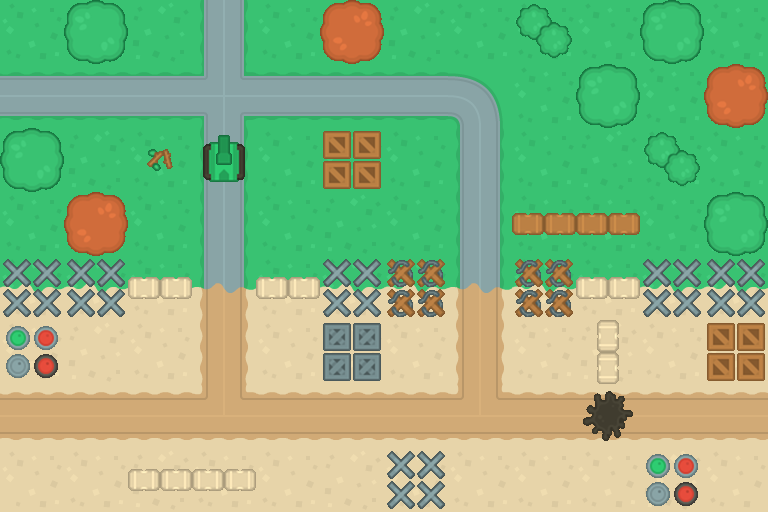
The map with the fence from map.txt. Try to drive through it!
Now try to break it: change a number in map.txt into x, or delete a row, and run the game. The console window shows the message, and you get the map from the code. Then undo your change.
A Map Editor
Section titled “A Map Editor”Editing map.txt by hand works, but it’s not much fun: which number was that tree again? Let’s put an editor in the game itself. Press E, and you can paint tiles with the mouse; press S, and the map is saved.
Tick is getting long, so before we add the editor, let’s split it up. Tick will keep drawing the map and the tank, and then call one of two new methods: Update, which drives the tank, or Edit, the map editor. They are methods of Game (like Tick), so they can use GetKey and screen, just like Tick does.
The editor also needs to know where the mouse is, and whether its buttons are down. The template tells the game about the mouse with MouseMove, MouseDown and MouseUp, but those don’t do anything yet. Open game.hpp, add the two methods below Tick, and change the mouse methods:
void Tick( float deltaTime ); void Update( float deltaTime ); // drives the tank void Edit( float deltaTime ); // the map editor // button 1 is the left mouse button, 3 the right one void MouseUp( int button ) { if (button == 1) mouseLeft = false; if (button == 3) mouseRight = false; } void MouseDown( int button ) { if (button == 1) mouseLeft = true; if (button == 3) mouseRight = true; } void MouseMove( int x, int y ) { mousex = x, mousey = y; }And add these variables (in the private part of the class, below frame):
int mousex = 0, mousey = 0; // the position of the mouse bool mouseLeft = false, mouseRight = false; // true while the left or right mouse button is held downThe template calls MouseMove whenever the mouse moves, with the position of the mouse in the screen (in pixels), and MouseDown and MouseUp when a button goes down or up. Button 1 is the left mouse button, and button 3 the right one (button 2 is the middle one). Now mousex, mousey, mouseLeft and mouseRight always tell you what the mouse is doing.
Then, in game.cpp, add these variables below tankFrame:
float tankX = 3 * TileSize + 32, tankY = 2 * TileSize + 32; // the middle of the tank int tankFrame = 0;
bool editing = false; // E switches between driving and editing int layer = 0; // the layer that you edit: 0 is the ground, 1 the objects int brush[2] = { 0, -1 }; // the tile that you place, for each layer (-1: no object) std::string message; // a message for a few seconds, after saving or loading float messageTime = 0;Letter Keys
Section titled “Letter Keys”The editor uses letters as shortcuts: E for edit, S for save, and L for load. For those keys, the template has one more method in game.hpp, right below GetKeyReleased:
// KeyFor( SDLK_S ) is the key with an "s" on it, on any keyboard (for keys where the letter matters, like S for save) SDL_Scancode KeyFor( SDL_Keycode key ) const { return SDL_GetScancodeFromKey( key, nullptr ); }KeyFor gives you the scancode of the key with a certain letter on it. The note below explains why you need it for letter keys.
Update
Section titled “Update”The first new method is Update. Add it below Shutdown, and move the code that drives the tank from Tick into it:
// Drives the tank with the arrow keys (or W, A, S and D); the tank stops at solid objects. void Game::Update(float deltaTime) { const float speed = 0.15f * deltaTime; // pixels per millisecond float newX = tankX, newY = tankY; if (GetKey(SDL_SCANCODE_UP) || GetKey(SDL_SCANCODE_W)) newY -= speed, tankFrame = 0; if (GetKey(SDL_SCANCODE_RIGHT) || GetKey(SDL_SCANCODE_D)) newX += speed, tankFrame = 4; if (GetKey(SDL_SCANCODE_DOWN) || GetKey(SDL_SCANCODE_S)) newY += speed, tankFrame = 8; if (GetKey(SDL_SCANCODE_LEFT) || GetKey(SDL_SCANCODE_A)) newX -= speed, tankFrame = 12; if (TankFits(newX, tankY)) tankX = newX; if (TankFits(tankX, newY)) tankY = newY; }This is exactly the code of part 11; only its place changed. Because Update is a method of Game, it is written as Game::Update, just like Game::Tick (remember the methods of the Tank class in part 12?).
The second new method is the editor. Add it below Update:
// The map editor: Tab chooses the layer, Z and X the tile; the left mouse button places it, the right one picks // the tile under the mouse. S saves the map, L loads it again. void Game::Edit(float deltaTime) { if (GetKeyPressed(SDL_SCANCODE_TAB)) layer = 1 - layer; const int lowest = layer == 0 ? 0 : -1, highest = layer == 0 ? 39 : 15; if (GetKeyPressed(SDL_SCANCODE_Z)) brush[layer] = brush[layer] == lowest ? highest : brush[layer] - 1; if (GetKeyPressed(SDL_SCANCODE_X)) brush[layer] = brush[layer] == highest ? lowest : brush[layer] + 1; const int tx = mousex / TileSize, ty = mousey / TileSize; // the tile under the mouse if (tx >= 0 && tx < MapWidth && ty >= 0 && ty < MapHeight) { int& tile = layer == 0 ? ground[ty][tx] : objects[ty][tx]; if (mouseLeft) tile = brush[layer]; if (mouseRight) brush[layer] = tile; // the tile that you would place, with a white frame around it if (layer == 0) DrawTile(screen, brush[0], tx * TileSize, ty * TileSize); else if (brush[1] != -1) { objectSprites.SetFrame(brush[1]); objectSprites.Draw(screen, tx * TileSize, ty * TileSize); } screen.Box(tx * TileSize, ty * TileSize, tx * TileSize + TileSize - 1, ty * TileSize + TileSize - 1, 0xffffff); }
if (GetKeyPressed(KeyFor(SDLK_S))) message = SaveMap("assets/map.txt") ? "SAVED ASSETS/MAP.TXT" : "COULD NOT SAVE ASSETS/MAP.TXT"; if (GetKeyPressed(KeyFor(SDLK_L))) message = LoadMap("assets/map.txt") ? "LOADED ASSETS/MAP.TXT" : "COULD NOT LOAD ASSETS/MAP.TXT"; if (GetKeyPressed(KeyFor(SDLK_S)) || GetKeyPressed(KeyFor(SDLK_L))) messageTime = 3000;
// what you are doing, at the top of the screen screen.Bar(0, 0, ScreenWidth - 1, 15, 0x202020); screen.Print(std::format("EDIT {}: TILE {} TAB: LAYER Z/X: TILE RIGHT CLICK: PICK S: SAVE L: LOAD E: DRIVE", layer == 0 ? "GROUND" : "OBJECTS", brush[layer]), 4, 5, 0xffffff); if (messageTime > 0) { messageTime -= deltaTime; screen.Bar(0, 16, ScreenWidth - 1, 31, 0x202020); screen.Print(message, 4, 21, 0xffff00); } }layeris the layer that you edit, andbrushholds the tile that you paint, for each of the two layers.layer = 1 - layerswitches between 0 and 1.- Z and X choose the previous and the next tile.
lowestandhighestare the lowest and highest tile numbers of the layer; after the last tile, you get the first one again. mousex / TileSizeis the column of the tile under the mouse, andmousey / TileSizeits row (an integer division, like inIsFree). Theifchecks that the mouse really is on the map.int& tileis a reference again:tileis another name for the tile under the mouse, in the layer that you edit.tile = brush[layer]changes the map itself, not a copy. Without the reference, we would need thelayer == 0 ? ... : ...for every use of the tile.- The tile under the mouse is drawn with the tile of the brush, with a white frame around it (
Boxdraws a rectangle), so you can see what you are about to paint. SaveMapandLoadMapreturntrueorfalse, and the editor shows a message for 3 seconds (3000 milliseconds ofdeltaTime), so that you know whether it worked.Editdraws on top of the map and the tank, so it must run after they are drawn. That’s up toTick.
Finally, Tick itself. It still draws the map and the tank, and then lets E choose between driving and editing:
// ----------------------------------------------------------- // Main application tick function // ----------------------------------------------------------- void Game::Tick(float deltaTime) { screen.Clear(0); for (int y = 0; y < MapHeight; y++) for (int x = 0; x < MapWidth; x++) { DrawTile(screen, ground[y][x], x * TileSize, y * TileSize); if (objects[y][x] != -1) { objectSprites.SetFrame(objects[y][x]); objectSprites.Draw(screen, x * TileSize, y * TileSize); } }
tank.SetFrame(tankFrame); barrel.SetFrame(tankFrame); tank.Draw(screen, static_cast<int>(tankX) - 32, static_cast<int>(tankY) - 32); barrel.Draw(screen, static_cast<int>(tankX) - 32, static_cast<int>(tankY) - 32);
// E switches between driving and editing if (GetKeyPressed(KeyFor(SDLK_E))) editing = !editing; if (editing) Edit(deltaTime); else Update(deltaTime); }Every frame, exactly one of the two methods runs: Edit when you are editing, and Update when you are driving. That’s also why the editor can use S to save: while you edit, the tank doesn’t drive. And Tick reads like a summary of the game: draw the world, then drive or edit.
The map editor. Press E to edit, Tab to switch between the ground and the objects, Z and X to choose a tile, the left mouse button to paint, and the right mouse button to pick the tile under the mouse. S saves the map, L loads it again, and E takes you back to the tank. (Click the demo first, so that it gets the keys. In the browser, the file is only kept until you reload the page.)
Paint a few trees, press S, and close the game. Run it again: your trees are still there, because Init loads map.txt. You can use the editor and the game together: change the map, press E, and try it with the tank right away.
Binary Files
Section titled “Binary Files”map.txt is a text file: it contains characters, which you can read and change in any text editor. To store the number 38, the file contains the characters 3 and 8, and LoadLayer has to turn those back into a number. That’s not the only way. In memory, an int is 4 bytes, and a binary file simply contains those 4 bytes. Let’s write the map as a binary file too.
MapHeader
Section titled “MapHeader”A binary file usually starts with a header: a small block of data that describes the rest of the file. Add this struct below LoadMap:
// The start of a binary map file: a "magic" code that says what kind of file it is, and the size of the map. struct MapHeader { char magic[4]; int width, height; };The first 4 bytes of the file are the characters TMAP. Such a code is called a magic number: many file formats start with one (a PNG file starts with the characters PNG, after one special byte). It tells a program that reads the file what kind of file it is. After the magic number, the header holds the size of the map, just like the first line of map.txt, and for the same reason: so that LoadMapBinary can refuse a file that was made for a map of a different size.
SaveMapBinary
Section titled “SaveMapBinary”Next, the function that saves the map as a binary file. Add it below MapHeader:
// Saves the map to a binary file: the header, and then the bytes of the two layers, just as they are in memory. bool SaveMapBinary(const std::string& filename) { std::ofstream file(filename, std::ios::binary); if (!file) return false; const MapHeader header = { { 'T', 'M', 'A', 'P' }, MapWidth, MapHeight }; file.write(reinterpret_cast<const char*>(&header), sizeof(header)); file.write(reinterpret_cast<const char*>(ground), sizeof(ground)); file.write(reinterpret_cast<const char*>(objects), sizeof(objects)); return static_cast<bool>(file); }SaveMapBinary opens the file in binary mode, and writes three blocks of bytes: the header, the ground layer and the object layer, exactly as they are in memory. Like SaveMap, it returns true when the map was saved, and false when it wasn’t.
std::ios::binaryopens the file in binary mode. In text mode, Windows writes the end of a line as two characters (a carriage return and a line feed), and turns them back into one"\n"when you read the file. That is fine for text, but in a binary file, any byte can be part of a number: theint10 contains a byte with the value 10, which happens to be the code of a line feed. In binary mode, the bytes are written exactly as they are.file.writewrites a block of memory: it takes the address of the first byte, and the number of bytes.sizeof(ground)is the size of the whole array in bytes: 12 × 8 tiles × 4 bytes = 384 bytes. So onewritewrites the whole layer, and onereadreads it back. No loops, no commas, no conversions.writewants the address as aconst char*(acharis one byte), but&headeris aMapHeader*, andgroundis an array ofint’s.reinterpret_casttells the compiler: treat this address as the address of some bytes. It doesn’t change anything in memory; it only changes how the compiler looks at the address. It’s a dangerous tool (it lets you treat anything as anything), so only use it for jobs like this one.
LoadMapBinary
Section titled “LoadMapBinary”And the function that loads it again. Add it below SaveMapBinary:
// Loads the map from a binary file; like LoadMap, the map only changes when the whole file is correct. bool LoadMapBinary(const std::string& filename) { std::ifstream file(filename, std::ios::binary); if (!file) return false; MapHeader header; file.read(reinterpret_cast<char*>(&header), sizeof(header)); if (!file || header.magic[0] != 'T' || header.magic[1] != 'M' || header.magic[2] != 'A' || header.magic[3] != 'P') return false; // not a map file if (header.width != MapWidth || header.height != MapHeight) return false; int newGround[MapHeight][MapWidth], newObjects[MapHeight][MapWidth]; file.read(reinterpret_cast<char*>(newGround), sizeof(newGround)); file.read(reinterpret_cast<char*>(newObjects), sizeof(newObjects)); if (!file) return false; for (int y = 0; y < MapHeight; y++) for (int x = 0; x < MapWidth; x++) { ground[y][x] = newGround[y][x]; objects[y][x] = newObjects[y][x]; } return true; }LoadMapBinary reads the same three blocks back: first the header, and then the two layers. It returns true when the map was loaded, and false when it wasn’t.
file.readis the opposite offile.write: it reads a number of bytes from the file into memory, at the address that you give it. Onereadfills the whole header, and onereadfills a whole layer.- When the header doesn’t start with
TMAP, it isn’t a map file, andLoadMapBinarystops right there. When the size in the header isn’t 12 × 8, the layers won’t fit in our arrays, so it stops too. - Like
LoadMap,LoadMapBinaryreads the layers into temporary arrays, and only changes the map when the whole file could be read. And likeLoadLayer, it doesn’t check the tile numbers themselves: a brokenmap.bincan still contain anything.
Saving and Loading
Section titled “Saving and Loading”Finally, change the part of Edit that saves and loads the map (and the text at the top of the screen):
const bool shift = GetKey(SDL_SCANCODE_LSHIFT) || GetKey(SDL_SCANCODE_RSHIFT); if (GetKeyPressed(KeyFor(SDLK_S)) && !shift) message = SaveMap("assets/map.txt") ? "SAVED ASSETS/MAP.TXT" : "COULD NOT SAVE ASSETS/MAP.TXT"; if (GetKeyPressed(KeyFor(SDLK_L)) && !shift) message = LoadMap("assets/map.txt") ? "LOADED ASSETS/MAP.TXT" : "COULD NOT LOAD ASSETS/MAP.TXT"; if (GetKeyPressed(KeyFor(SDLK_S)) && shift) message = SaveMapBinary("assets/map.bin") ? "SAVED ASSETS/MAP.BIN" : "COULD NOT SAVE ASSETS/MAP.BIN"; if (GetKeyPressed(KeyFor(SDLK_L)) && shift) message = LoadMapBinary("assets/map.bin") ? "LOADED ASSETS/MAP.BIN" : "COULD NOT LOAD ASSETS/MAP.BIN"; if (GetKeyPressed(KeyFor(SDLK_S)) || GetKeyPressed(KeyFor(SDLK_L))) messageTime = 3000;
// what you are doing, at the top of the screen screen.Bar(0, 0, ScreenWidth - 1, 15, 0x202020); screen.Print(std::format("EDIT {}: TILE {} TAB: LAYER Z/X: TILE RIGHT CLICK: PICK S/L: SAVE/LOAD (SHIFT: BINARY) E: DRIVE", layer == 0 ? "GROUND" : "OBJECTS", brush[layer]), 4, 5, 0xffffff);The editor with binary files: Shift+S saves assets/map.bin, and Shift+L loads it. Save the map as a binary file, change a few tiles, and load it again. (Click the demo first, so that it gets the keys.)
This is what the start of map.bin looks like, byte by byte (in hexadecimal, see part 9):
54 4D 41 50 0C 00 00 00 08 00 00 00 00 00 00 0000 00 00 00 0A 00 00 00 01 00 00 00 00 00 00 0054 4D 41 50 are the character codes of T, M, A and P. Then comes 0C 00 00 00: the int 12 (0C in hexadecimal), with the lowest byte first. That’s how your processor stores an int in memory (it’s called little-endian). Then 8, and then the tiles of the ground: 0, 0, 10 (0A), 1, and so on. You can’t read this file in a text editor; Visual Studio can show it as bytes like this (open it with Open With… and choose the Binary Editor).
So is the binary file smaller? Not really: map.bin is 780 bytes (12 for the header, and 384 for each layer), and map.txt is 794 bytes. Every tile takes 4 bytes in the binary file, and 4 characters (" 38,") in the text file. The tile numbers are small; a float like 3.14159274 takes 10 characters as text, but always 4 bytes in a binary file, so for other data, the difference can be much bigger. The real advantages of a binary file are that loading it is fast (one read for a whole array, without turning text into numbers), and that you don’t lose anything: a float written as text may be rounded, but its 4 bytes are exact.
There are disadvantages too. You can’t read or change the file in a text editor, and a mistake is hard to find. And the file depends on how this program stores its data in memory: a different compiler may add padding bytes to MapHeader, and a processor that stores an int the other way around reads 12 as 201326592. For files that you only use in your own game, that’s fine. Many games use text files while the game is being made (they are easy to edit and to check), and binary files in the finished game (they are fast to load).
Assignment
Section titled “Assignment”Make a function that saves the screen as an image file, and call it when the player presses P (for picture: a letter key, so use KeyFor). Use the TGA format: it’s a simple format, and image editors like Photoshop, GIMP and Paint.NET can open it.
A TGA file starts with a header of 18 bytes, followed by the pixels, row by row:
struct TGAHeader{ unsigned char ID, colmapt; // set both to 0 unsigned char type; // set to 2: an image without a palette, not compressed unsigned char colmap[5]; // set all elements to 0 unsigned short xorigin, yorigin; // set both to 0 unsigned short width, height; // the size of the image unsigned char bpp; // bits per pixel: set to 32 unsigned char idesc; // set to 0x20: the first row of pixels is the top row};The header must be exactly 18 bytes. Add static_assert(sizeof(TGAHeader) == 18); below the struct: the compiler will then check that for you.
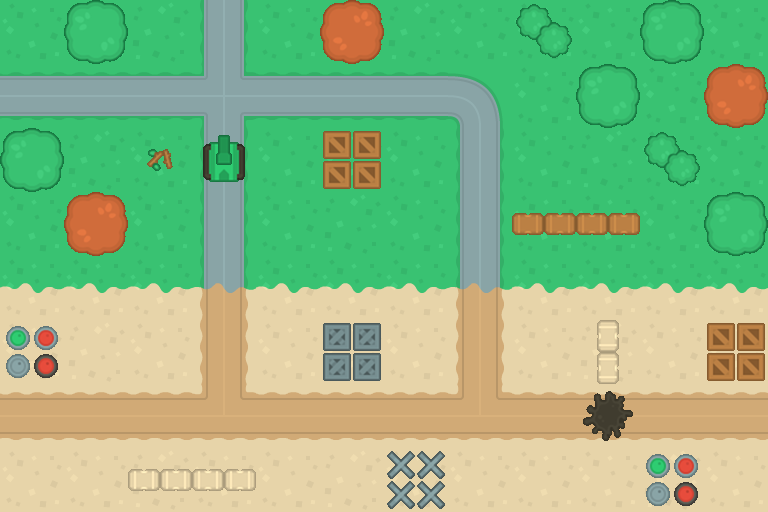
The result: a screenshot saved by the game, opened in an image editor.
Intermediate
Section titled “Intermediate”- Pressing P again overwrites the screenshot. Give every screenshot its own name:
screenshot001.tga,screenshot002.tga, and so on. Don’t overwrite the screenshots of an earlier run of the game either. - Save the position of the tank in
map.txttoo, after the layers, and put the tank there when the map is loaded. Amap.txtwithout a tank position (like the one you have now) must still load.
The result: a new file every time you press P, and a tank that starts where you left it:
screenshot001.tgascreenshot002.tgascreenshot003.tga- Every tile number fits in a single byte: a
signed charholds the numbers from -128 to 127. Make the binary file 4 times smaller, by writing one byte per tile instead of anint. - Old
map.binfiles (with 4 bytes per tile) must still load. Add a version number to the header, and makeLoadMapBinaryread both versions. (But how do you recognize a file without a version number? Change the magic number too!)
The result: map.bin shrinks from 780 bytes to about 200, and the game still loads your old map.bin.
Once you have completed these, you may continue with the next part.
Comments